



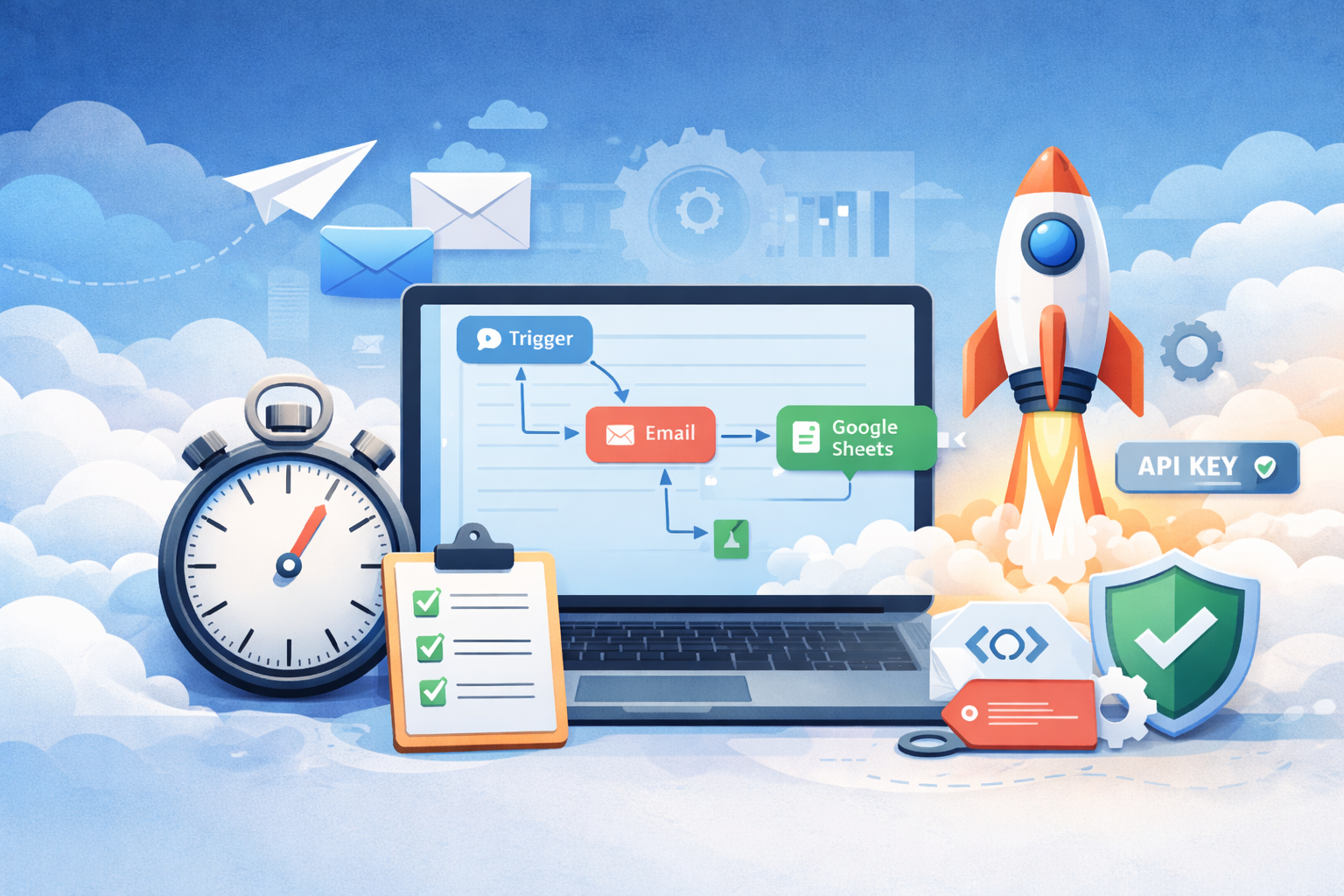
If you’ve ever opened an automation tool, felt excited, and then got stuck on setup, you’re not alone. Most people don’t fail because automation is “too hard”—they fail because the starting point is unclear. This short guide shows you a simple, repeatable way to get your first automation running quickly using a ready-to-import workflow bundle.
Before you start, make sure you have the basics ready: access to the automation tool you use (cloud or self-hosted), the integrations you want to connect (such as Gmail, Google Sheets, Telegram, Discord, or webhooks), and the credentials needed for those services (API keys, OAuth access, bot tokens). Having these prepared saves the most time, because credential setup is where most first-time automations break.
Start by choosing just one workflow that solves a real problem. Don’t import twenty workflows at once—this usually creates confusion, not progress. Pick something practical like capturing leads from email into a spreadsheet, sending a Telegram notification when a form is submitted, or creating an automatic reply when a certain type of message arrives. When you complete one workflow end-to-end, the next one becomes much easier.
After importing the workflow, rename it clearly and keep it organized. A simple naming style like “Lead Capture – Gmail → Sheets” makes troubleshooting easier later. If your tool supports folders or tags, place it in a category such as “Leads,” “Operations,” or “Marketing.” This small habit prevents your dashboard from turning into a mess once you have multiple workflows running.
Next, configure credentials carefully, one connection at a time. This is where most problems happen. Connect a single node, test it, and then move to the next node. For example, confirm that your Google account has the right permissions for the target sheet, that your Telegram bot token is correct, or that your webhook URL is the one you’re actually using. Testing step-by-step prevents you from chasing errors across the entire workflow.
When everything is connected, test with real data—not dummy data. Send a real email, add a real row to a spreadsheet, or trigger the webhook with an actual request. Many workflows appear to work with fake inputs but fail when the real service responds differently. Real testing also helps you confirm formatting, timing, and edge cases early.
Finally, add two simple “safety guards” to make your automation reliable. First, add error handling so you get notified if something fails, such as an email or Telegram alert. Second, add a filter or rate limit to prevent unnecessary triggers—like skipping messages that don’t match a subject keyword or limiting how often a workflow can run. These two improvements take only a minute but make the workflow feel professional and stable.
The most common mistakes are using the wrong credentials (personal vs business accounts), missing permissions for files or folders, webhook URLs changing after redeployments, and running too many triggers at once which causes duplicates. If you keep your setup simple and test step-by-step, you’ll avoid most of these issues.
If you want a beginner-friendly starter workflow, try this: “New Lead → Save + Notify.” Use a trigger like a new form submission or a new email, then save the lead into Google Sheets and send a notification to Telegram. Once that works, you can add an optional auto-reply email. The goal isn’t to build something complicated—the goal is to save time with a workflow that runs reliably.
If you want, I can write your next blog post too: “Top 10 Automations for Small Businesses” or “Client Onboarding Automation in 15 Minutes (Agency Pack).”
Leave a Reply
You must be logged in to post a comment.